

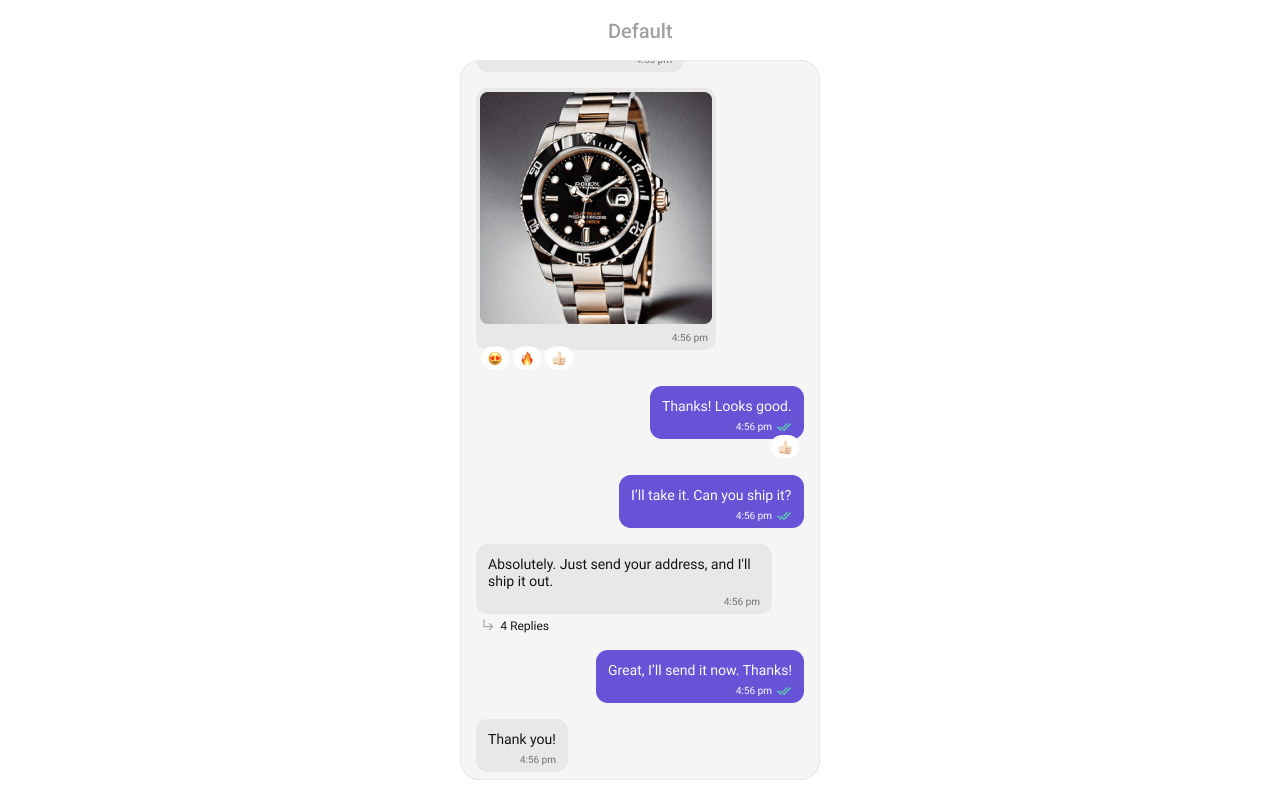
CometChatMessageList renders a scrollable list of messages for a conversation with real-time updates for new messages, edits, deletions, reactions, and threaded replies.
Where It Fits
CometChatMessageList is a message display component. It requires either a User or Group object to fetch and render messages. Wire it with CometChatMessageHeader and CometChatMessageComposer to build a complete messaging layout.
- Kotlin (XML Views)
- Jetpack Compose
activity_chat.xml
Quick Start
- Kotlin (XML Views)
- Jetpack Compose
Add to your layout XML:Set a
User or Group — this is required:CometChatUIKit.init(), a user logged in, and the UI Kit dependency added.
Filtering
Pass aMessagesRequest.MessagesRequestBuilder to control what loads:
- Kotlin (XML Views)
- Jetpack Compose
Filter Recipes
Actions and Events
Callback Methods
onThreadRepliesClick
Fires when a user taps a threaded message bubble.
- Kotlin (XML Views)
- Jetpack Compose
onError
Fires on internal errors (network failure, auth issue, SDK exception).
- Kotlin (XML Views)
- Jetpack Compose
onLoad
Fires when the list is successfully fetched and loaded.
- Kotlin (XML Views)
- Jetpack Compose
onEmpty
Fires when the list is empty after loading.
- Kotlin (XML Views)
- Jetpack Compose
SDK Events (Real-Time, Automatic)
The component listens to SDK message events internally. No manual setup needed.Automatic: new messages, edits, deletions, and reactions update the list in real time.
Functionality
Multiple Attachments
Media messages that carry multiple attachments render with dedicated per-type bubbles — an image grid for images, a video grid for videos, a stacked player list for audio files, and a connected card stack for documents (see Message Bubble Styling for each one). When a single composer send is split into several messages (one per attachment type), the list groups them visually as one batch: the avatar and sender name appear only on the first message of the batch, the timestamp and read receipt only on the last, while reactions stay per message. Grouping is derived from list-neighbor adjacency on thebatchId the composer stamps on each message — there are no separate index/count keys. A mic-recorded voice note carries a voice_note marker and always renders standalone, never grouped.
The behavior is on by default and can be toggled:
- Kotlin (XML Views)
- Jetpack Compose
false renders every media message with the classic single-attachment bubbles instead.
Custom View Slots
Header View
Custom view displayed at the top of the message list.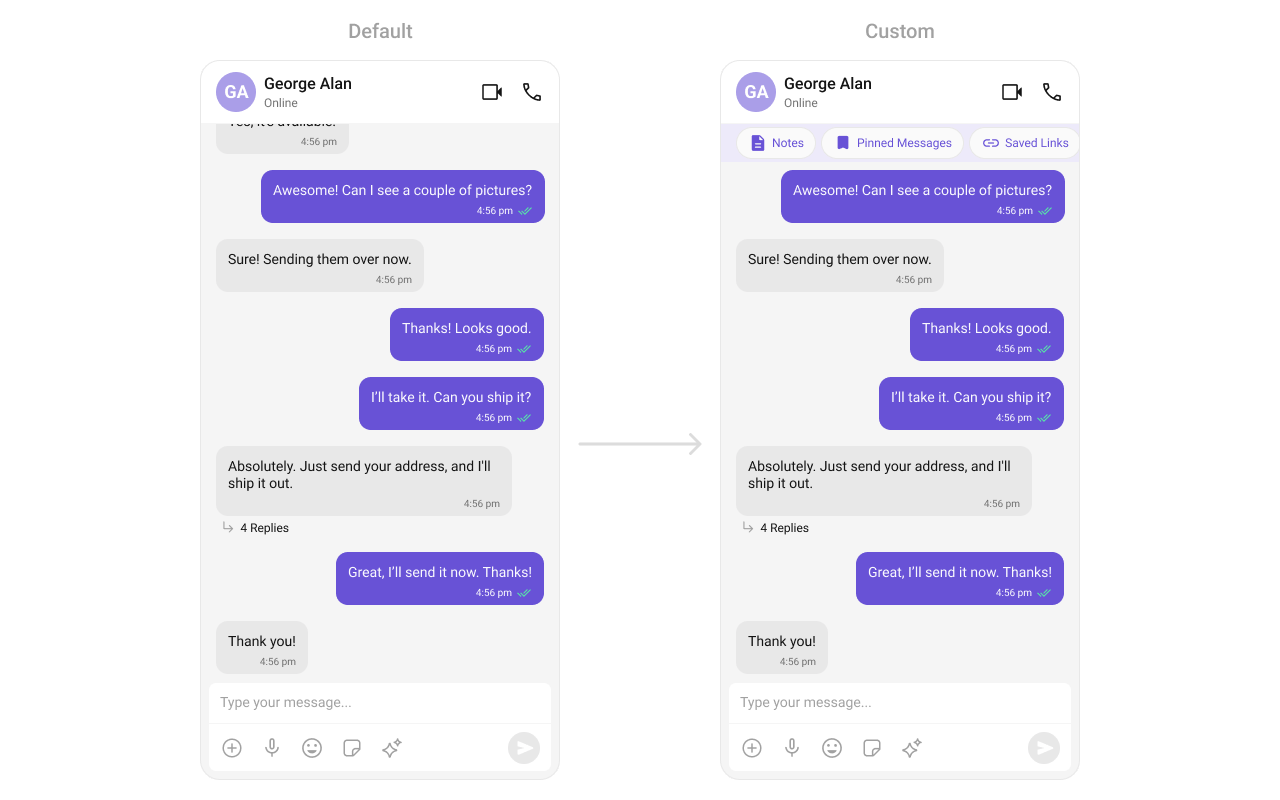
- Kotlin (XML Views)
- Jetpack Compose
Footer View
Custom view displayed at the bottom of the message list.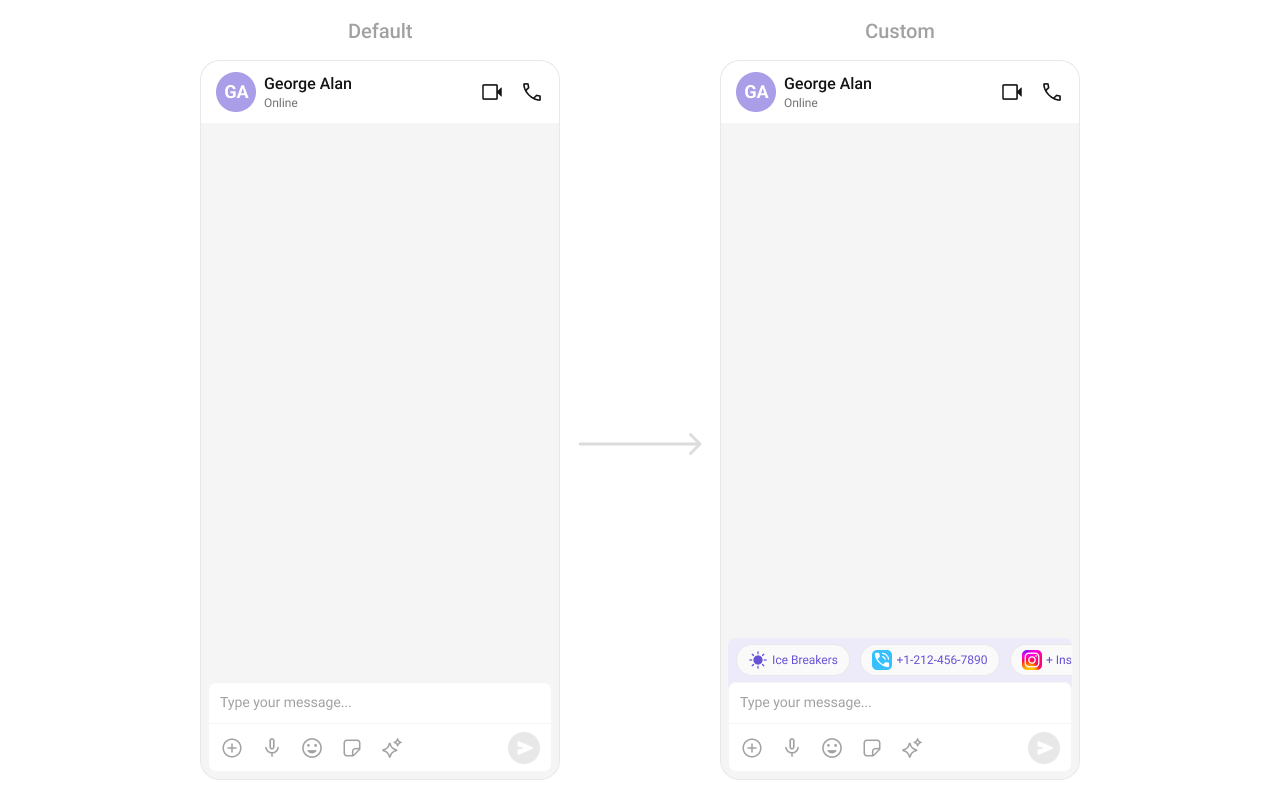
- Kotlin (XML Views)
- Jetpack Compose
State Views
- Kotlin (XML Views)
- Jetpack Compose
Text Formatters (Mentions)
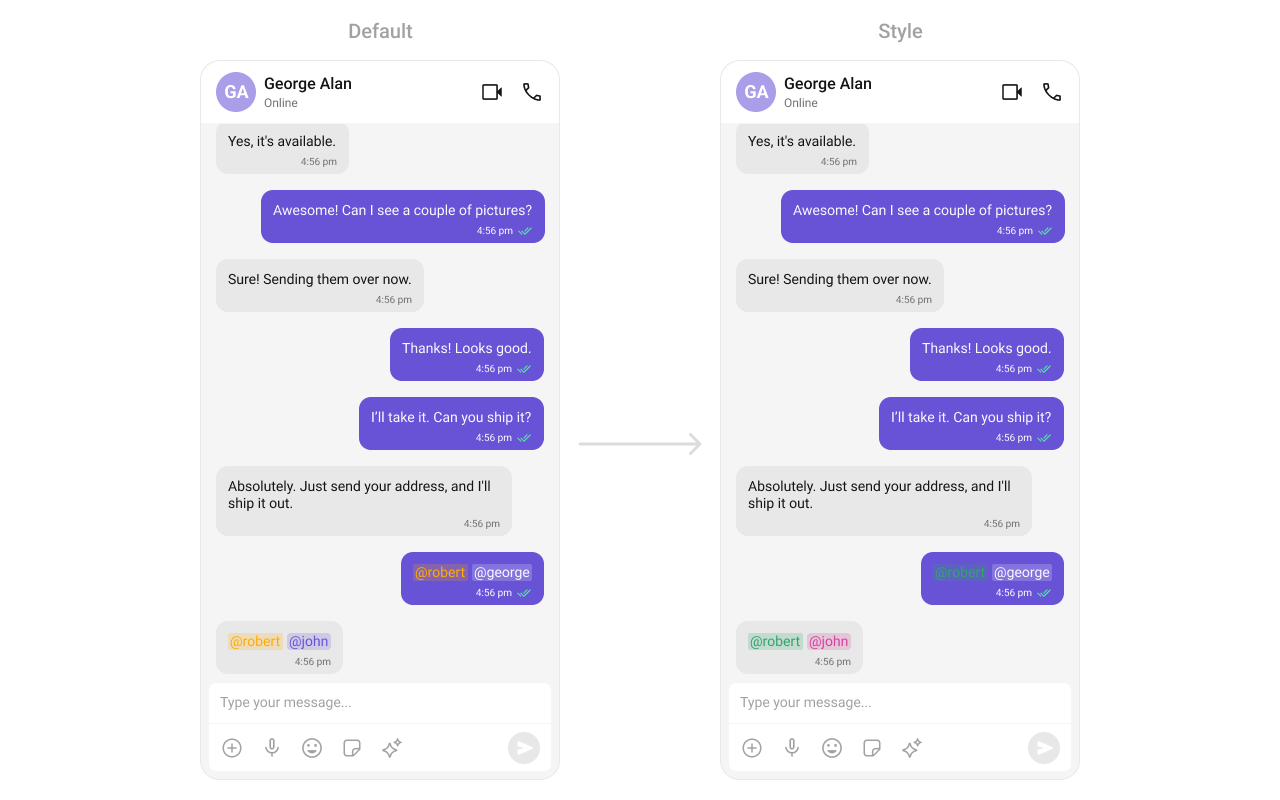
- Kotlin (XML Views)
- Jetpack Compose
Bubble Factory
CometChatMessageList uses a factory-based pattern to render message content. Each message type (text, image, video, etc.) has a corresponding BubbleFactory that creates and binds the bubble view. You can replace existing factories or register new ones for custom message types.
How It Works
When a message is displayed, the list resolves a factory key from the message’scategory and type (e.g., message_text, custom_location). If a matching BubbleFactory is registered, it handles view creation and binding. Otherwise, the built-in InternalContentRenderer handles default rendering.
A BubbleFactory has two lifecycle phases:
create*View(context)— called once when the ViewHolder is created. The message object is not available at this point.bind*View(view, message, alignment, ...)— called every time a message is displayed. This is where you populate the view with message data.
Replacing an Existing Bubble Factory
Override how a built-in message type renders by registering a factory with the same category and type:- Kotlin (XML Views)
- Jetpack Compose
Adding a New Bubble Factory for Custom Messages
Register a factory for a custom message type that the SDK doesn’t handle by default:- Kotlin (XML Views)
- Jetpack Compose
Replacing the Entire Bubble
OverridegetBubbleView to replace the entire message bubble (including all slots like header, footer, avatar) instead of just the content area:
- Kotlin (XML Views)
- Jetpack Compose
Bubble Slot Reference
EachBubbleFactory can override individual slots within the bubble:
- Kotlin (XML Views)
- Jetpack Compose
Bubble Slot View Providers
WhileBubbleFactory customizes rendering per message type, slot view providers let you override a specific slot across all message types. This is useful when you want consistent customization (e.g., always show a custom avatar or always add a custom footer) regardless of the message type.
Slot view providers take priority over
BubbleFactory slot methods. If both are set, the provider wins.- Kotlin (XML Views)
- Jetpack Compose
Use Available provider setters:
BubbleViewProvider — an interface with createView() (called once per ViewHolder) and bindView() (called each time a message binds):Message Options
Message options are the contextual actions shown when a user long-presses a message bubble (e.g., Reply, Copy, Edit, Delete). You can control their visibility, replace the entire options list, or append custom options.Toggling Default Option Visibility
Each built-in option has a visibility setter. PassView.VISIBLE or View.GONE:
- Kotlin (XML Views)
- Jetpack Compose
Replacing All Options (setOptions)
Use setOptions to completely replace the default options for a message. Return a list to override, or null to fall back to defaults:
- Kotlin (XML Views)
- Jetpack Compose
WhensetOptionsreturns a non-null list,addOptionsis not invoked.
Appending Custom Options (addOptions)
Use addOptions to append additional options after the default ones. This is invoked only when setOptions is not set or returns null:
- Kotlin (XML Views)
- Jetpack Compose
Conditional Options Per Message
BothsetOptions and addOptions receive the BaseMessage, so you can return different options based on message type, sender, or any other condition:
- Kotlin (XML Views)
- Jetpack Compose
CometChatMessageOption Reference
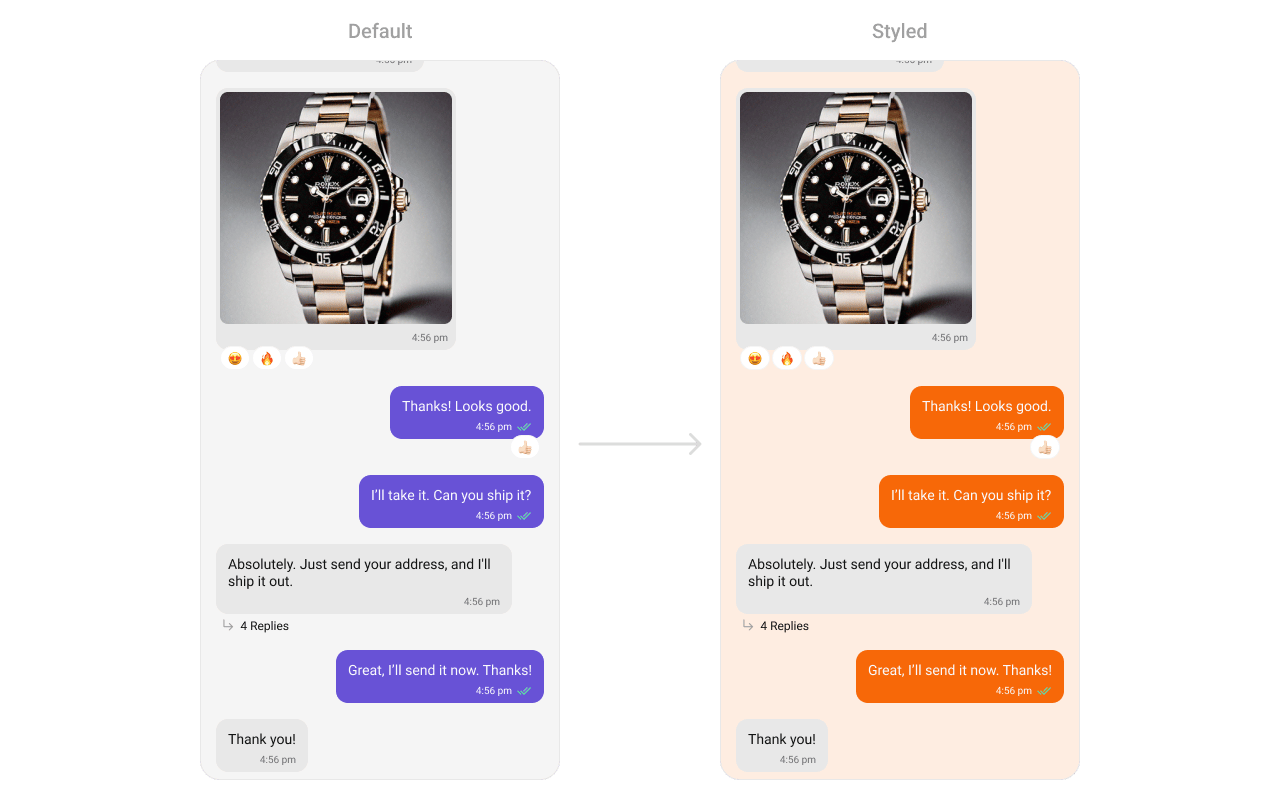
Style
- Kotlin (XML Views)
- Jetpack Compose
Define a custom style in
themes.xml:themes.xml
ViewModel
- Kotlin (XML Views)
- Jetpack Compose
Next Steps
Message Header
Display user/group info in the toolbar
Message Composer
Rich input for sending messages
Message Template
Customize message bubble structure
Component Styling
Detailed styling reference